

Here at BisectHosting, we're always striving to improve and continue to offer the best game hosting services, and today we proudly took another step toward that goal! Introducing Starbase Mods Manager, a new addition that lets you browse, install, and manage mods right from our custom Starbase panel! This new feature is available now for Hytale, which is perfect for its recent early access launch, but more games are coming (and you can let us know what you want to see next here)!
So today, we'll go through a step-by-step guide to using this integrated mod manager tool on servers old and new!
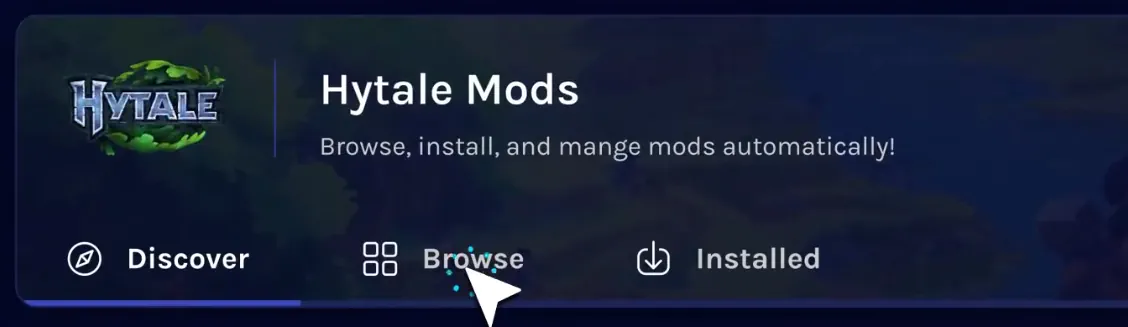 The Starbase Mods Manager is the latest new feature crafted by our dedicated team, and it can now be found on the Starbase control panel of your BisectHosting Hytale server under the “Mods” tab.
Selecting it opens a catalogue of the game’s most popular mods right from your panel, with a separate browsing tab for more in-depth searches or for quickly grabbing your favorites. Regardless of which is used, the installation process is as simple as clicking a button!
The Starbase Mods Manager is the latest new feature crafted by our dedicated team, and it can now be found on the Starbase control panel of your BisectHosting Hytale server under the “Mods” tab.
Selecting it opens a catalogue of the game’s most popular mods right from your panel, with a separate browsing tab for more in-depth searches or for quickly grabbing your favorites. Regardless of which is used, the installation process is as simple as clicking a button!
 Installing mods with the Starbase Mods Manager begins within your Starbase game server panel on the BisectHosting website, found here. Once logged in, simply follow the steps below to get started!
What is the Starbase Mods Manager?
The Starbase Mods Manager is the latest new feature crafted by our dedicated team, and it can now be found on the Starbase control panel of your BisectHosting Hytale server under the “Mods” tab.
Selecting it opens a catalogue of the game’s most popular mods right from your panel, with a separate browsing tab for more in-depth searches or for quickly grabbing your favorites. Regardless of which is used, the installation process is as simple as clicking a button!
How to Use the Starbase Mods Manager
Installing mods with the Starbase Mods Manager begins within your Starbase game server panel on the BisectHosting website, found here. Once logged in, simply follow the steps below to get started!
- Log in to the Starbase game server panel
- Select the tab labeled “Mods” on the left side of the screen.
- Inside the Mods Manager, select the “Browse” tab near the top of the screen.
- Search or browse until your desired mod has been found.
- Click the “Install” button to the right of the desired mod’s name.
- Exit the Mods Manager and restart the server.
- Hop in and play!
responseTitle
responseCount responseOkayLabel
 responsePerfectLabel
 responseLovedLabel