
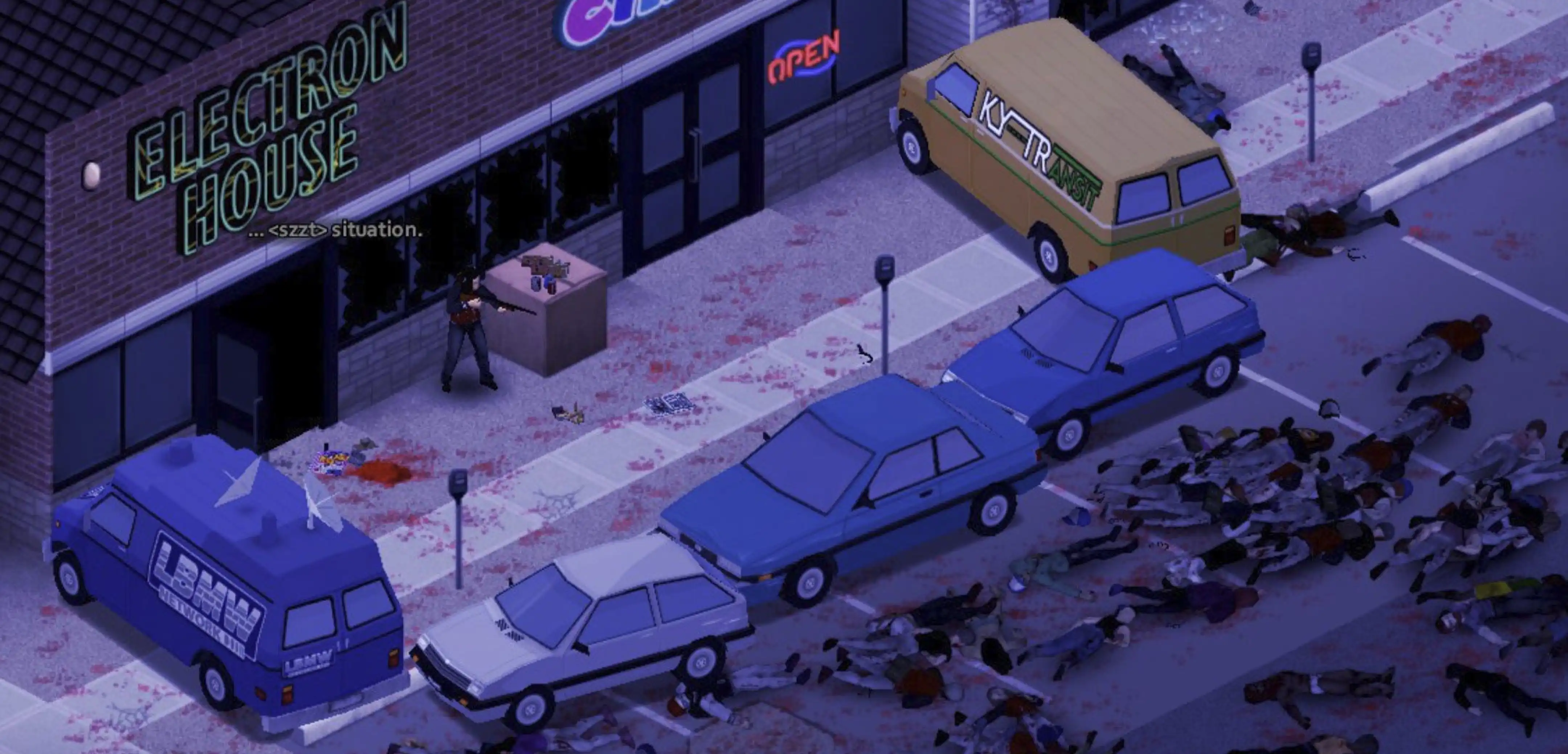
Becoming proficient with the controls in Project Zomboid is crucial for staying alive in its unforgiving, zombie-filled environment. Survivors must use the game’s available controls to make conscious decisions, such as attacking or running away, which ultimately affect their survival. So, continue reading to learn more about the controls and keybinds for Project Zomboid and become a master survivor in Knox Country.
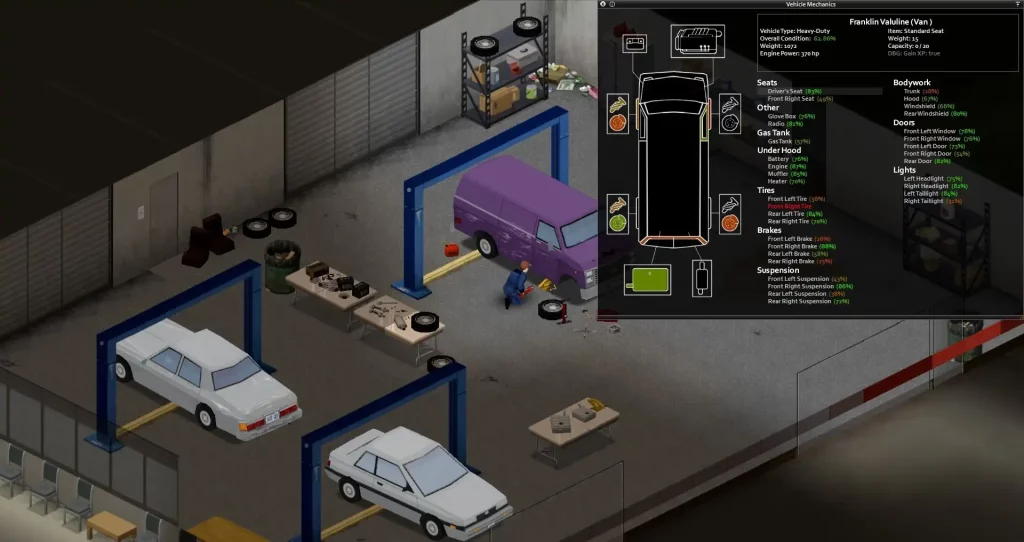 The following controls and keybinds for Project Zomboid follow Build 41. Some controls may change with future builds.
All Project Zomboid Controls and Keybinds
The following controls and keybinds for Project Zomboid follow Build 41. Some controls may change with future builds.
Keyboard & Mouse
Note that most Project Zomboid controls and keybinds are editable. Players can modify certain controls to help fit their preferred playstyle.Player Control
- Forward: W
- Backward: S
- Left: A
- Right: D
- Run: Left Shift
- Sprint: Left Alt
- Rotate Building: R
- Toggle Mode: Tab
- Cancel Action: Escape
- Walk To: Y
Combat
- Sneak: C
- Aim: Left Control
- Shove/Stomp: Space
- Rack Firearm: X
- Reload Weapon: R
- Manual Floor Attack: Left Alt
Vehicle
- Start Vehicle Engine: N
- Toggle Vehicle Headlights: F
- Vehicle Heater: O
- Vehicle Info: U
- Horn: Q
- Vehicle Radial Menu: V
- Switch Seat: Z
User Interface
- Toggle Crafting UI: B
- Main Menu: Escape
- Toggle Inventory: I
- Toggle Skill Panel: L
- Toggle Health Panel: H
- Toggle Moveable Panel Mode: ]
- Toggle Map: M
- Take Screenshot: F10
- Toggle Survival Guide: F1
- Display FPS: K
- Pause: F2
- Normal Speed: F3
- Fast Forward x1: F4
- Fast Forward x2: F5
- Fast Forward x3: F6
- Zoom In: =
- Zoom Out: .
Hotkeys
- Hotbar 1: 1
- Hotbar 2: 2
- Hotbar 3: 3
- Hotbar 4: 4
- Hotbar 5: 5
- Equip/Turn/Off Light Source: F
Multiplayer
- Toggle Safety: G
- Toggle Chat: T
- Alt Toggle Chat: Return
- Switch Chat Stream: Tab
Voice
- Push-to-Talk: Left Alt
NPC Interaction
- Shout: Q
- Emotes Wheel (long press): Q
Debug
- Toggle Lua Debugger: F11
- Toggle Lua Console: `
- Toggle God Mode and Invisible: N
- Toggle Models Enabled: F3
- Toggle Animation Text: F6
Search Mode
- Toggle Search Mode: End
Gamepad
It’s important to mention that the gamepad controls for Project Zomboid are displayed with the configurations of an Xbox controller. Although it’s possible to use other gamepads with other button layouts, such as the PlayStation 5 DualSense controller, the game will still display the button configurations of an Xbox controller, which may confuse some players.- Move Player: Left stick
- Toggle Walk/Run: Press Left analog stick
- Navigate Contextual Menus: Directional Pad
- Sneak/Aim, Navigate Radial Menu: Right analog stick
- Interact 1: A
- Interact 2: B
- Display Contextual Menu, Available Interactions, & Quick Loot/Drop Item: X
- Inventory: Y
- Navigate Tabs: Left and Right Bumpers
- Shove/Stomp: Left Trigger
- Fire/Attack: Right Trigger
- Display Radial Menu: View/Back
- Pause/Menu: Start
responseTitle
responseCount responseOkayLabel
 responsePerfectLabel
 responseLovedLabel