

Vibrant Visuals is here, which has brought many players cheer, but not everyone shares the sentiment, and that is completely fair. So, today, we answer the question, “How to turn off Vibrant Visuals in Minecraft,” to get things back to how they used to appear.
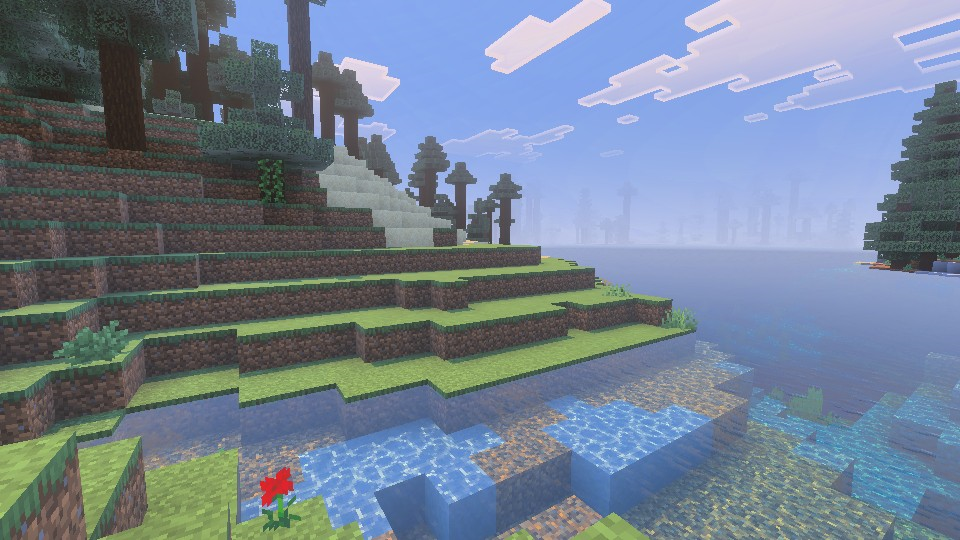 Vibrant Visuals is a new graphics setting found above “Fancy” in Minecraft Minecraft 1.21.6 Chase the Skies. It updates select textures, makes water more realistic, and adds dynamic lighting with accurate shadows that are rendered down to the pixel. For many Bedrock Edition players, it was enabled automatically after updating. However, the setting is entirely optional and can be turned off in the main menu, following the steps in the section below.
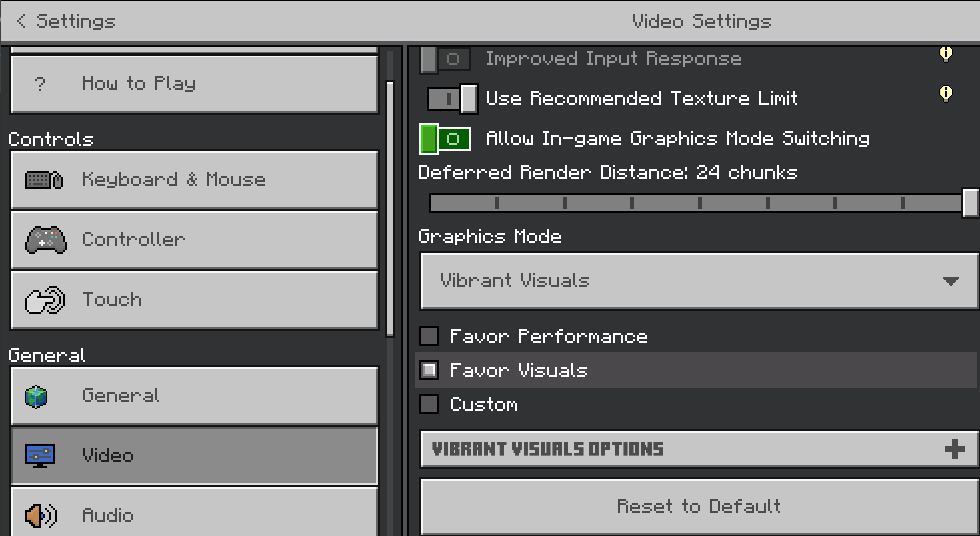
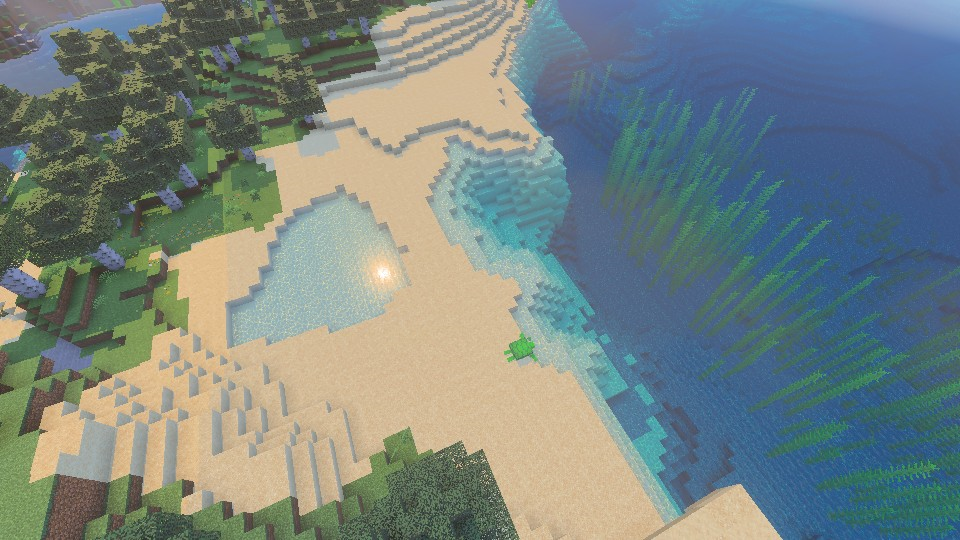 Bedrock Edition players can turn on Vibrant Visuals in the main menu at any time, following the same steps we outlined in the section above. If it was turned off due to performance issues, we recommend trying it once more with the “Favor Performance” sub-option selected instead. Should that still not help, the “V.V. Options” can be adjusted to better suit your system as well.
What Is Vibrant Visuals?
Vibrant Visuals is a new graphics setting found above “Fancy” in Minecraft Minecraft 1.21.6 Chase the Skies. It updates select textures, makes water more realistic, and adds dynamic lighting with accurate shadows that are rendered down to the pixel. For many Bedrock Edition players, it was enabled automatically after updating. However, the setting is entirely optional and can be turned off in the main menu, following the steps in the section below.
How to Turn Off Vibrant Visuals in Minecraft
- Open Minecraft Bedrock Edition
- Click “Settings”
- Click “Video”
- Scroll Down to “Graphics Mode”
- Select “Simple” or “Fancy” From the Dropdown Menu
- Leave the Settings and Enjoy Minecraft 1.21.6
Can It Be Enabled Later?
Bedrock Edition players can turn on Vibrant Visuals in the main menu at any time, following the same steps we outlined in the section above. If it was turned off due to performance issues, we recommend trying it once more with the “Favor Performance” sub-option selected instead. Should that still not help, the “V.V. Options” can be adjusted to better suit your system as well.responseTitle
responseCount responseOkayLabel
 responsePerfectLabel
 responseLovedLabel