
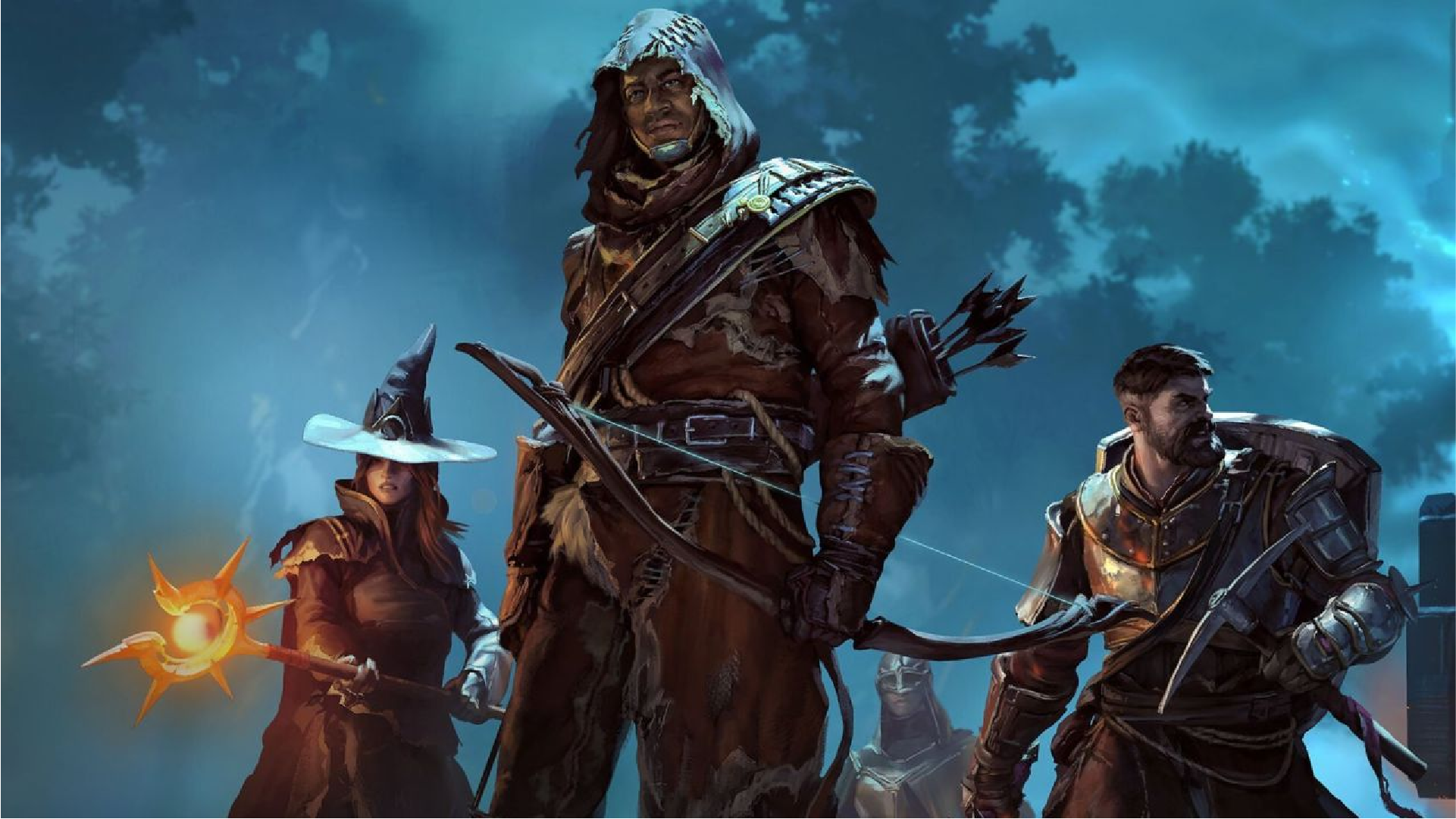
The world of Embervale is a sight to behold. Here, players feast their eyes on Embervale and its rich biomes, ranging from lush landscapes to arid deserts. However, the visual appeal of Enshrouded may cause FPS and performance issues for some gaming systems. So, keep reading for some potential fixes and improve your overall gaming experience.
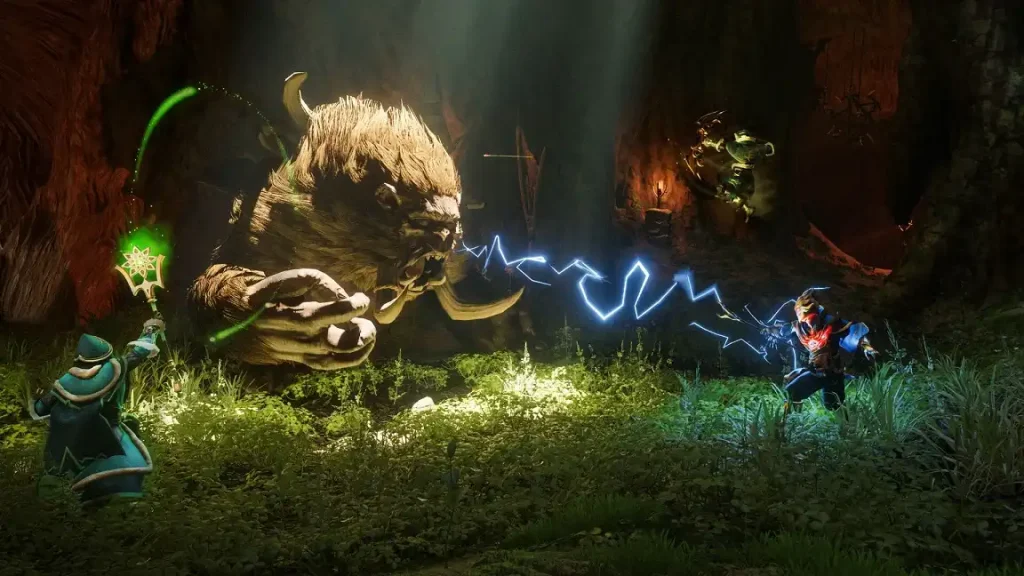 First, it’s important to mention that the possible solutions mentioned below may not be universal fixes for every system configuration. Nonetheless, these tips provide valuable starting points for solving FPS and performance issues in Enshrouded.
How to Fix FPS and Performance Issues in Enshrouded
First, it’s important to mention that the possible solutions mentioned below may not be universal fixes for every system configuration. Nonetheless, these tips provide valuable starting points for solving FPS and performance issues in Enshrouded.
Ensure You Meet the Minimum System Requirements
Meeting the minimum system requirements for Enshrouded is essential for a smooth and stable gaming experience. Remember, possessing the ideal hardware and software specifications, particularly your CPU and GPU, enables your PC to handle voxel-based terrain and dense fog systems effectively. Come up short, and Enshrouded may experience bottleneck issues, resulting in poor performance and low FPS. With that, here are the minimum and recommended system requirements for Enshrouded, as highlighted in the game’s official Steam page:Minimum System Requirements
- CPU & OS: 64-bit processor and Windows 10
- Processor: Intel Core i5-6400 (2.7 GHz 4 Core) / AMD Ryzen 5 1500X (3.5 GHz 4 Core) or equivalent
- Memory: 16 GB RAM
- Graphics: NVIDIA GeForce GTX 1060 (req. 6GB VRAM) / AMD Radeon RX 580 (req. 6GB VRAM) / Intel ARC A380
- Storage: 60 GB available space
Recommended System Requirements
- CPU & OS: 64-bit processor and Windows 10
- Processor: Intel i7-8700 (3.7 GHz 6 Core) / AMD Ryzen 7 2700X (3.7 GHz 8 Core) or equivalent
- Memory: 16 GB RAM
- Graphics: NVIDIA RTX 2070 Super (req. 6GB VRAM) / AMD Radeon RX 6700 XT (req. 6GB VRAM) / Intel ARC A770
- Storage: 60 GB available space
Disable Overlays
Discord, Steam, and other apps have overlays that promote accessibility and convenience to players, encouraging efficiency while playing Enshrouded. However, these overlays can take up a PC’s resources, causing this game to lag and stutter, especially when exploring heavily rendered biomes. So, here’s how to disable the overlays of some fairly common PC apps:Disable the Discord Overlay
- 1. Open the Discord app, and then click on the “User Settings” icon at the bottom left of the window
- 2. Navigate to the “Game Overlay” tab
- 3. Move the “Enable in-game overlay” slider to the left to disable the overlay
Disable the Steam Overlay
- 1. Open the Steam app, and click on “Steam” on the top left corner of the window
- 2. Navigate to the “Settings” menu, and then click the “In Game” tab
- 3. Move the “Enable the Steam Overlay while in game” slider to the left to disable the overlay
Disable the Xbox Game Bar
- 1. Open the Windows Start Menu, and then click on “Settings”
- 2. Navigate to the “System” tab, and scroll down to find and select “System Components”
- 3. Click on the ellipsis (three dots) next to “Game Bar” to open a context menu
- 4. Click “Advanced options” from the context menu
- 5. Scroll down to “Background component permissions,” and change it from “Power optimized” to “Never”
- 6. While still in the same window, scroll down and click on the “Terminate” button
- 7. Navigate to the “Gaming” tab within the “Settings” window, and then select “Game Bar”
- 8. Move the “Allow your controller to open Game Bar” slider to the left
Change In-Game Display Settings
Apart from changing some global settings from your PC, you can also tweak certain display settings from within Enshrouded to help fix FPS and performance issues. So, launch Enshrouded and access your character. Next, navigate to the in-game “Settings” menu, and then click on the “Display” tab. Here, lower the setting next to “Quality Preset” until you’re satisfied. Note that some systems may need to use the “Maximum Performance” setting for the game to run smoothly. If selecting “Maximum Performance” still doesn’t provide decent FPS and performance for Enshrouded, turn off the “Limit Framerate in Background” setting. Then, navigate to the “Accessibility” tab, and then disable “Reduce Dynamic Camera Motion.” Restart the game if necessary, and check if turning off these elements increased the app’s overall performance.Set Enshrouded to High Priority
By default, Enshrouded isn’t set as a “High Priority” app in Windows. So, let the operating system allocate more resources to Enshrouded by setting it to a higher priority, which may help reduce or even eliminate FPS and performance issues. So, follow these steps to set the app as “High Priority:”- 1. Launch Enshrouded, and press the Windows key on your keyboard (if the app is running in full screen)
- 2. Right-click on the taskbar and select “Task Manager” from the context menu
- 3. Navigate to the “Details” tab in Task Manager, and search for the main Enshrouded process
- 4. Right-click on Enshrouded, and navigate to the “High” setting next to “Priority” on the context menu
- 5. Restart Enshrouded to ensure the new settings apply
Upgrade Graphics Drivers
Enshrouded continues to improve its graphics quality with frequent updates. That also means that gaming systems need to catch up with these changes to reduce and even prevent FPS and performance problems for the game. One way to ensure your PC stays on top of these improvements is by updating your graphics drivers, and here are some ways to do it:Update Graphics Drivers with Device Manager
- 1. Open the Windows Start menu or the “Run” app (press the Windows key + R)
- 2. Type “Device Manager” (without the quotes) and select it
- 3. Search for “Display Adapters” in the Device Manager window, and right-click on it
- 4. Select “Update Driver” in the context menu
- 5. Choose “Search automatically for drivers,” and wait for the process to complete
Update Graphics Drivers with the NVIDIA App
- 1. Close Enshrouded (if it’s running), and launch the NVIDIA App
- 2. Navigate to the “Drivers” tab, and then click the green “Download” button
- 3. Wait for the download to complete, and then click “Install”
- 4. Wait for the installation to complete, and run Enshrouded to check if the FPS and performance issues persist
responseTitle
responseCount responseOkayLabel
 responsePerfectLabel
 responseLovedLabel